
How to fix error code 18 on Google Play Store (Smartphone)
What is error code 18? What are the reasons for it to occur? How to fix it?
This error is accompanied by the following note:
Can't install app.
App can't be installed. Try again, and if the problem continues, get help troubleshooting (Error code: 18).
Error 18 appears when the Google Play Store app cannot install an app, or apps. It can occur on any smartphone and tablet running on any version of the Android operating system, including Samsung, Huawei, Xiaomi, Sony, OnePlus, and many other devices.
The reasons why this error occurs are:
- The microSD card (provided that you use one);
- Outdated operating system;
- Outdated Google Play app;
- Corrupt update files of the Google Play app;
- Unstable Internet connection;
- Corrupt cached files and app data.
The solutions below are created based on thorough research, and include the feedback of experts and users who had this error and managed to solve it. Feel free to check them out and follow them carefully.
-
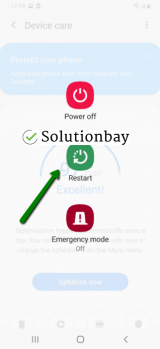
Turn off your device and turn it back on
0(0)0(0)If you run into the Google Play Store error 18, the first course of action you should take is to restart your device. Restarting your device will also restart the Google Play Store app, and the entire operating system, as well as all the other (pre-)installed apps one of which might have been the reason for this error in the first place. Turn off your device, and turn it back on after two minutes. Then, open the Google Play app, and check if you can reproduce this error.
 More infos
-
Connect your device to a stable Internet connection
0(0)0(0)It is possible that the Internet connection you are connected to is overloaded, or unstable, which resulted in corrupt app files being downloaded. Google Play Store needs a strong and stable Wi-Fi connection, so that it can download, install and update apps properly. If you are connected to a Wi-Fi network, try connecting to another Wi-Fi network, or mobile data. Also, every time you connect from one network connection to another, restart the Google Play Store app through the app switcher and try to install apps again.
To improve the stability and reliability of your Internet connection, try the tips below:
- Buy a signal booster (if you live in a house);
- Move the router's antennas to different positions;
- Upgrade your Internet provider plan, to allow for greater download an upload speeds;
- Buy a stronger router, or replace the router (if no other solution worked, or the router was strong already);
- Subscribe to a different, more stable Internet provider if nothing else worked.
Discover more solutions on how to improve your Internet connection, in the slow Internet guide.
More infos
-
Clear the cache and data files of Google Play and the other Google vital apps
0(0)0(0)One of the reasons for the Google Play error code 18 are corrupt cache and data files. Even though their primary purpose is to improve the speed and performance of apps, it's quite the opposite when they become corrupt. Reasons for them to become corrupt include: system updates, app updates, processes related to other apps. The solution, in this case, is clearing the cache and data files. By clearing the cache and data files, all the corrupt files will be removed, and replaced with clean files the next time you open the apps.
You can the files related to Google Play and all the related Google apps if you follow the steps below:
- Go to Settings > Apps/Application Manager;
- Select Apps/Applications Manager;
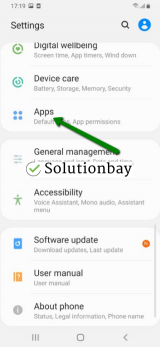
- Select Google Play Store from the list and tap on the clear data and clear cache buttons;
- Select Google Services Framework from the list and tap on the clear data and clear cache buttons;
- Select Google Play Service from the list and tap on the clear data and clear cache buttons;
- Select Download Manager and tap on the clear data and clear cache buttons.

The video tutorial below shares how and where to clear app data and cache files of apps:
Note: The video above is recorded on a Samsung Galaxy device, running on Android OS 8 - steps may vary from one device to another.
More infos
Like Solutionbay?
Also check out our other projects :) See all projects -
Update your device's operating system to the latest version
0(0)0(0)It is possible that the current operating system version your device runs on is the reason for the error code 18 in Google Play, very likely due to a conflict with apps optimized for newer operating system versions. Check if an update is available and install it, if it is. Usually, updates are installed automatically, however, it's advised to check manually, from time to time, if an update is available.
To update the device's operating system to the latest version, and possibly resolve the issue, follow the steps below:
On other devices (e.g. Samsung) you need to do the following:
- Go to Settings;
- Tap on Software Update;
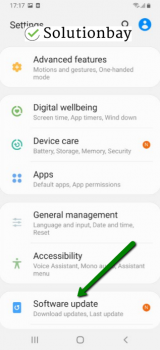
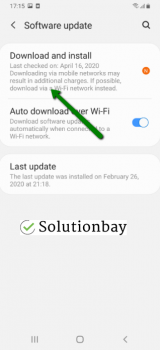
- Tap on Download and Install, if an update is available (if not, on a check for updates button).
The video demo below shares information on how to update your device's operating system (recorded on a Samsung device, running on Android OS 8):
Note: Make sure that your device won't run out of battery power, to avoid a more serious damage. It is safer to connect your device to the charger. Also, connect to a more stable Wi-Fi connection, and not mobile data, to avoid additional charges that may incur.
More infos
-
Eject and reinsert your device's microSD card
0(0)0(0)If you have a microSD card in your device, and the error code 18 appeared, it is possible that the microSD card got misplaced, or stuck, resulting in your device not to be able to read it, run or install app(s) to it. Removing the microSD card, and reinserting it, can fix this error.
Remove the microSD card from your device, clean it up with a dry cloth, and reinsert it again.
More infos
-
Install the app in the internal memory
0(0)0(0)Errors can occur when apps are installed on a microSD card. The reasons include the microSD card getting misplaced, disconnected, or corrupt. Installing apps in the device's internal memory will ensure that apps are stored in a safer environment, and should fix the error code 18.
If you are not sure how to uninstall the app, you can move it manually, as shown in the video demo below (varies from one device to another):
More infos

Login to Solutionbay
Join Solutionbay
Please click on the confirmation link we just sent you to
If you don’t receive the email in the next 2 minutes please check your junk folder, and add [email protected] to your safe sender list.