
How to fix error code 24 on Google Play Store
What is error code 24? What are the reasons for it to occur? How to fix it?
Can't install app.
App can't be installed. Try again, and if the problem continues, get help troubleshooting (Error code: -24)
Accompanied by the message above, error 24 appears when an app cannot be installed via the Google Play Store app. It can occur on any smartphone and tablet running on any version of the Android operating system, including and not limited to Samsung, Huawei, Xiaomi, Sony, OnePlus, and many other devices.
The reasons why this error occurs are:
- Outdated operating system;
- Outdated Google Play app;
- Corrupt update files of the Google Play app;
- Corrupt cached files and app data;
- Unstable Internet connection.
The solutions listed below are created based on thorough research and the feedback of experts and users who had this error and managed to solve it. Check them out and follow the instructions carefully.
-
Restart your device
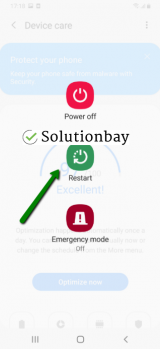
0(0)0(0)Comparable to a huge factory, the operating system has many tasks and processes running in the background to ensure that your device will run smoothly. The first course of action you need to take, to fix error 24 in Google Play is to reboot your device. Restarting your device will also restart the Google Play Store app, the entire operating system and its processes (one of which may be stuck), as well as all the other (pre-)installed apps. Restart your device, open Google Play, and try installing the app again.
 More infos
-
Clear the cache and data files of Google Play and the other Google vital apps
0(0)0(0)One of the reasons behind the Google Play Store error 24 are corrupt cache and data files, even though their purpose is quite the opposite (to improve the speed and performance of apps). Operating system updates, app updates, scans from other apps, power outages of mobile devices, as well as other errors can corrupt the cache and data files. The solution is removing the corrupt files, i.e. clearing the cache and data files. Once cleared, they will be replaced with brand new and clean files.
You can clear the cache and data files related to Google Play and all the related Google apps if you follow the steps below:
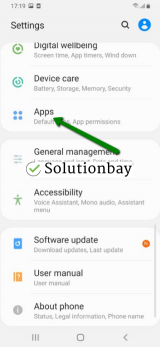
- Go to Settings > Apps/Application Manager;
- Select Apps/Applications Manager;
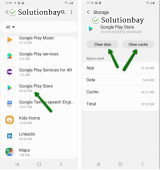
- Select Google Play Store from the list and tap on the clear data and clear cache buttons;
- Select Google Services Framework from the list and tap on the clear data and clear cache buttons;
- Select Google Play Service from the list and tap on the clear data and clear cache buttons;
- Select Download Manager and tap on the clear data and clear cache buttons.
The video tutorial below shares how and where to clear app data and cache files from:
Note: The video above is recorded on a Samsung Galaxy device, running on Android OS 8 - steps may vary from one device to another.
More infos
-
Update your device's operating system to the latest version
0(0)0(0)It is also possible that the current operating system version installed on your device is the reason for this error, mainly due to conflicts with apps optimized for newer operating system versions. Check if an update is available and install it, if it is. Usually, updates are installed automatically, however, it's advised to check manually if one is available, periodically.
To check for updates, and update the device's operating system to the latest version, follow the steps below:
On other devices (e.g. Samsung) you need to do the following:
- Go to Settings;
- Tap on Software Update;
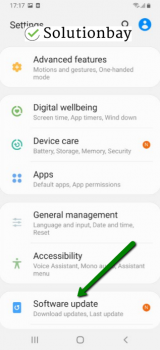
- Tap on Download and Install, if an update is available (if not, on a check for updates button).
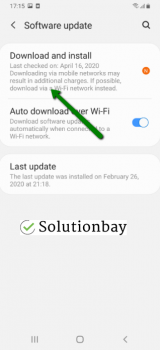
The video demo below shares information on how to update your device's operating system (taken on a Samsung device, running on Android OS 8):
Note: Make sure that your device won't run out of battery power, to avoid a more serious damage. It is safer to connect your device to the charger. Also, connect to a more stable Wi-Fi connection, and not mobile data, to avoid additional charges that may incur.
More infos
Like Solutionbay?
Also check out our other projects :) See all projects -
Connect your device to a reliable Internet connection
0(0)0(0)Just like every process running on your device, Google Play Store needs a strong and stable Wi-Fi connection, so that it can download, install and update apps properly.
It is possible that the Internet connection you are connected to is overloaded, or unstable. If you are connected to a Wi-Fi network, try connecting to another Wi-Fi network or mobile data. Also, every time you switch between network connections, restart the Google Play Store app through the app switcher, and try to download and install apps again.
You can improve your Internet connection by following the tips below:
- Buy a signal booster (if you live in a house);
- Move the router's antennas to different positions;
- Upgrade your Internet provider plan, to allow for greater download an upload speeds;
- Buy a stronger router, or replace the router (if no other solution worked, or the router was strong already);
- Subscribe to a different, more stable Internet provider if nothing else worked.
Discover more solutions on how to improve your Internet connection, in the slow Internet guide.
More infos
-
Reinstall all the updates of the Google Play Store app
0(0)0(0)Like every other app, Google Play needs to be updated, too, in order to receive the latest performance improvements, bug fixes, as well as to have compatibility issues to be resolved. It's possible that the latest upgrade of the Google Play Store app is responsible for the error code 24. The reason why this may be the case is that the update wasn't downloaded or installed properly due to the Internet connection, other process running in the background, and more.
In order to fix this error, if it was caused by the update, uninstall the latest update of the Google Play Store app, and reinstall it.
To uninstall the latest updates of Google Play, follow the steps mentioned below:
- Go to Settings and select Application Manager/Apps;
- Tap on Google Play Store, click on the three-dot icon in the upper right-hand corner, and select Uninstall updates;
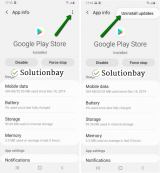
- Tap on OK to confirm;
- Open the Google Play Store app;
- Update it, if prompted.
The video guide below, recorded on a Samsung Galaxy device, which runs on Android OS 8 (the steps described may slightly vary from one device to another), demonstrates how to uninstall updates, easily:
More infos
-
Wipe the cache partition
0(0)0(0)Every device running on the Android operating system has a secret menu whose purpose is to help you regain access to your device in case if the operating system is severely damaged, or you can't access it (for example, you forgot your passcode). Part of this menu is an option to wipe the cache partition. Wiping the cache partition via the recovery menu can help you fix errors, especially if the partition held corrupt files. All the files will be wiped, and then clean versions of these files will be created.
In order to access the recovery mode and wipe the cache partition, follow the steps below:
- Power off the device. If you can't do that using the power button, just remove the battery and insert it after 10 seconds.
- Press and hold the Volume (+) up and the Power (Sleep/Wake) buttons. Once your device powers up, let go of the buttons.
* If you use a Samsung device, press the Power (Sleep/Wake), Volume (+) up and Home button. - Press the Volume up or Volume down key to navigate through the options. Highlight the Wipe cache partition then press the Power (Sleep/Wake) key to make the selection.
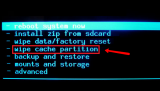
More infos
- Power off the device. If you can't do that using the power button, just remove the battery and insert it after 10 seconds.
-
Restore your device to the factory settings
0(0)0(0)If the other solutions didn't work, reset your device to its factory settings. Resetting your device will remove the corrupt system files and resolve many issues along the way.
To reset your device to its factory settings, follow the steps below:
- Backup your device's data to any cloud storage service (e.g. to Google Drive, Dropbox);
- Go to Settings;
- Tap on Reset;
- Tap on the factory reset option;
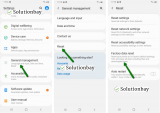
Feel free to watch the tutorial below, on how to reset your device (taken on a Samsung Galaxy device, running on Android 8 - the steps described may vary from one device to another):
Note: Make sure that your device is fully charged before resetting it, to avoid additional complications. Also, do make a backup of your files (photos, videos, music, and other documents), so that they are safely stored and so that you can make a copy on whichever device you use.
More infos
-
Have your device rooted and delete the folders of the trouble making apps
0(0)0(0)Rooting your device is intrusion to the hidden operating system files that are not accessible in another way. Those files were hidden on purpose, so that you can safely use your device, and to ensure that you won't be able to cripple the operating system, by mistake.
This is the very last step you would need to take, and only if resetting your device to its factory settings didn't work. Once your device is routed, install a root manager and delete the app folder(s) of the apps that you removed, but are still there.
Note: The process of routing a device varies from one device manufacturer to another, and is highly dangerous to your device, since it might make it unusable.
More infos
Like Solutionbay?
Also check out our other projects :) See all projects

Login to Solutionbay
Join Solutionbay
Please click on the confirmation link we just sent you to
If you don’t receive the email in the next 2 minutes please check your junk folder, and add [email protected] to your safe sender list.