
How to fix the issue with not receiving emails (Microsoft Outlook)
-
Go online
0(1)0(0)Your emails might not be sent simply because you were working offline and you probably weren't aware of that. When you're working offline, your Outlook is disconnected from the server and you cannot send nor receive any emails. To fix the problem, simply click on the Work Offline tab from the task bar on top to go back Online.
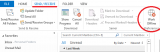
Work Offline is a Microsoft Outlook's feature that allows you to read your e-mails, work on your calendar, address book and other items, even though you're not connected to the internet. For instance, you can read the e-mails that were stored on your computer before you went offline. This is due to the fact that Outlook stores copies of messages in an Office database, allowing you to access them without a network connection.
More infos -
Make sure that the sender's account isn't on the blocked list
0(1)0(0)Blocking an email address means that you won't be able to receive anything sent to you by that email address.
If you have (accidentally) added the email account that sent you the email to the list of blocked contacts, make sure to unblock it first and then ask the sender to resend the email to you.More infos -
Wait for the server to go online
0(0)0(0)Sometimes this problem is caused by the mail server being offline. You can check whether it's online or not in the Status bar.
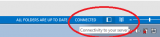
The fix is quite simple, because you just have to wait for the server to go Online. Once it does that, Outlook will check for and receive new email, automatically.
More infosLike Solutionbay?
Also check out our other projects :) See all projects -
Rename the SRS file
0(0)0(0)Sometimes you won't be able to receive emails because the Send and Receive Setting is acting up and the most common reason behind that is a corrupt SRS file.
Outlook saves its users' Send and Receive customizations in a file with the *.SRS extension. You can fix this problem by finding and renaming the SRS file of your profile.
If you're using Windows 7, 8 (.1), 10 or Vista, you'll find the SRS file at this directory: C:\Users\username\AppData\Roaming\Microsoft\Outlook\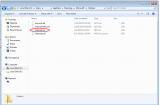
However, if you use Windows XP, you will find it here: C:\Documents and Settings\%username%\Application Data\Microsoft\Outlook\
Either way, you can always type/paste %appdata%\microsoft\outlook in the address bar of your Windows Explorer and it will get you to the right directory.More infos
Login to Solutionbay
Join Solutionbay
Please click on the confirmation link we just sent you to
If you don’t receive the email in the next 2 minutes please check your junk folder, and add [email protected] to your safe sender list.