
How to fix the issue with not receiving emails
-
Check your Internet connection
1(5)0(0)Make sure that your computer is connected to the Internet. Type any address (e.g. Google, Yahoo, etc.) in a web browser to check if you have access to the Internet.
If the page are not loading at all and you receive a "No Internet Connection" message of any kind, you need to try to reconnect to the Internet.If you are still unable to go online, check out the No Internet Connection solutions.
More infos -
Check if emails sent to you are bouncing
1(5)0(0)Maybe your email address "refuses" to receive emails.
To test and resolve this issue, try sending an e-mail from another account (account A) to your own account (account B) and see what happens.Did the e-mail message bounce (failed to send)? If it did, you will receive a return message, on account A that the delivery wasn't successful, as well as possible reasons for that.
You can also check your e-mail address's validity here.
If your email address is valid and it still "refuses" new emails, check out the emails don't get delivered / bounce solutions.
More infos -
Contact your email provider
0(6)0(0)If you tried all the common solutions but none of them worked, try calling your email service provider, which should help you resolve the issue.
More infosLike Solutionbay?
Also check out our other projects :) See all projects -
Check all mail folders
0(6)0(0)Sometimes mails can be directed to the Spam or Junk folders, for no reason and even though they shouldn't be treated as such.
Make sure you search through all those folders thoroughly and see if the emails you were expecting ended up there.
More infos -
Increase the storage quota
0(4)0(0)If you are keeping important emails in your mailbox, which you can't delete, but you are unable to receive new emails, consider increasing the storage quota of your email address, i.e. the number of emails you can store in your mailbox.
Check your email service provider's website to see if they offer that as an option.
More infos
-
Check/Update your email account's settings
0(3)0(0)If you have entered incorrect login details, or if you have changed your password but you have forgotten to update the login details in the email app or web browser, you definitely won't be able to receive emails.
Make sure that you are using correct account credentials and carefully type your username and password to log in.
Also, make sure that you have entered the correct details for the:
- Incoming mail server (POP3/IMAP server): mail.yourdomain.com
- Outgoing mail server (SMTP server): mail.yourdomain.com
- Username: the full e-mail address: misterx(@)xyz.com (without the brackets)
- Password
Note: Make sure to check/tick the My SMTP server requires authentication check box.
More infos -
Restart your device
0(3)0(0)If you can't send nor receive emails on your device, try restarting it.
After restarting your device, wait for a couple of minutes for everything to load and then check if you are able to receive mails, by sending one from another email account.
If you are not sure how to restart your device, check out the don't know how to restart my device guide.
More infos -
Close and reopen the Mail app (iOS)
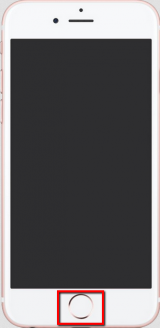
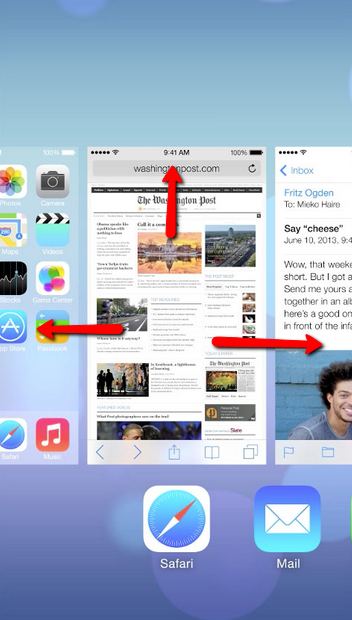
0(3)0(0)If you can't send emails from the Mail app, try closing it via the app switcher and then reopening it.
Double-tap the Home button to access the app switcher -> Swipe left or right to find the application you want to close -> Swipe up over it to close it.*You can quit up to three applications at a time by placing you fingers over them and and swiping up.
 More infosLike Solutionbay?
Also check out our other projects :) See all projects -
Modify the email filters
0(3)0(0)You may have accidentally activated an email filter which filtered your emails, which explains the reason you are not able to see particular emails.
Check your email filters and make sure that they are set up correctly.
Note: If you are not sure how to find the filters (if any), check the email-service provider's help page.
More infos -
Disable email scanning in your antivirus
0(2)0(0)Check if other programs that are running on your computer or mobile device prevent your email client from doing its tasks.
Usually, anti-virus software block email clients in order to protect you from online threats. If you have an antivirus software running, disable it and then check if you are able to receive emails, by sending yourself an email from another account or asking a friend to do that for you instead.
If this solved your issue, you can "tell" the antivirus software to stop blocking your email client via its Settings menu, or you can change the email software's (client's) settings.
More infos -
Install another email app
0(2)0(0)If you have exhausted all the options to fix the email app, consider installing another one.
Open Google Play, (if you use an Android device), or App Store (if you use an iOS device) and find another app. Type "email manager" or "email app" and select and install an app. Before you install one, make sure to read user reviews.
More infos -
Remove your email account and set it up again
0(2)0(0)If you still have issues with receiving emails, remove your email account from the Mail app and then add it back. Before you re-add the email account, log in to your email from the website to verify that all of your email is there or check if your email is saved somewhere other than your iOS device.
To remove and add your email:
- Go to Settings -> Mail, Contacts, Calendars.
- Tap the email account you want to remove.
- Tap Delete Account.
- Add your email account
More infos - Go to Settings -> Mail, Contacts, Calendars.
-
Sign up for another email service provider
0(2)0(0)If you have exhausted all the options and you are still unable to receive emails, consider switching to a different email service provider.
There are many providers out there, out of which the most famous are Gmail, Outlook and Yahoo. Select the one you prefer and create an account.
More infosLike Solutionbay?
Also check out our other projects :) See all projects -
Change the port numbers
0(2)0(0)Maybe you can send emails, but you can't receive emails, because you (or your email service provider) have accidentally changed the port number(s).
Check out this article for tips on where to find and change the port numbers, BUT please note that the port numbers shared in the article apply only to GreenNet and not to other email service providers (visit their website to find their port numbers).
More infos -
Open your mailbox in a web browser
0(2)0(0)Maybe you are able to receive new emails, but your email software or app is unable to show you the latest emails you received, for some reason.
Try opening your mailbox through a web browser to see if that helps.
More infos -
Check your email server's status
0(1)0(0)If you are connected to the Internet, but you receive error message "Connection timed out" (meaning it cannot be established), it is possible that your email provider is experiencing a service outage (too many emails have been sent at the same moment or some other similar problem).
The only thing you need to do is to wait until servers are up and running again.
Search for their status web page (of the email you are using) in your web browser to make sure their service is online. You can find more info on Downrightnow.
More infos -
Update your email software
0(1)0(0)If you are using outdated version of the email exchange software, you might experience issues with sending or receiving emails.
Update the email software via its official website and check if everything works properly.
Note: Make sure to check for updates on a regular basis in order to keep your email address safe.
More infos -
Restart the email software
0(1)0(0)Sometimes Outlook (or any other email client) might get stuck and this is why it won't send email.
To resolve this issue, close the email software (go to Task Manager (Ctrl+Alt+Delete) ) to make sure it has really closed (if not, click on it then hit End Process) and then re-launch it.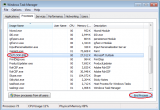 More infosLike Solutionbay?
Also check out our other projects :) See all projects -
Go online
0(1)0(0)Your emails might not be sent simply because you were working offline and you probably weren't aware of that. When you're working offline, your Outlook is disconnected from the server and you cannot send nor receive any emails. To fix the problem, simply click on the Work Offline tab from the task bar on top to go back Online.
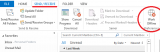
Work Offline is a Microsoft Outlook's feature that allows you to read your e-mails, work on your calendar, address book and other items, even though you're not connected to the internet. For instance, you can read the e-mails that were stored on your computer before you went offline. This is due to the fact that Outlook stores copies of messages in an Office database, allowing you to access them without a network connection.
More infos -
Enable IMAP and change the settings
0(1)0(0)If you tried setting up your Gmail account on another email software or app and you are unable to receive emails, you need to enable IMAP and change the settings in your email software or app.
Follow the steps below in order to enable IMAP:
- On your computer, open Gmail and sign in to your account.
- Click the gear icon In the top-right corner of the screen -> Click Settings.
- Click the Forwarding and POP/IMAP tab.
- In the "IMAP Access" section, select Enable IMAP.
- Click Save Changes.
After you have enabled IMAP, you might need to change your email software's or app's IMAP settings as follows:
- Incoming Mail (IMAP) Server
imap.gmail.com
Requires SSL: Yes
Port: 993 - Outgoing Mail (SMTP) Server
smtp.gmail.com
Requires SSL: Yes
Requires TLS: Yes (if available)
Requires Authentication: Yes
Port for SSL: 465
Port for TLS/STARTTLS: 587 - Full Name or Display Name
Enter your name - Account Name, User name, or Email address
Enter your full email address - Password
Enter your Gmail password
More infos -
Allow less secure apps to access your account (Gmail)
0(1)0(0)Google may block sign-in attempts from some email software or apps or devices that do not use modern security standards, in order to prevent unauthorized access to your email account from other people, without your permission. Since these apps and devices are easier to break into, blocking them helps keep your account safe. Maybe the email software or app you try to send emails from, is one of these less-secure apps.
In order to fix this, you need to change account access for less secure apps. In order to do this:
- Log in to your Gmail account.
- Click My Account and go to the "Less secure apps" section.
- Select Turn on, which is next to Access for less secure apps.
More infos -
Wait
0(1)0(0)Maybe your email account is temporary blocked, because a suspicious activity was detected on it. All you have to do is to wait for up to 2 days (if you use Yahoo mail), or more, depending on your email service provider's terms.
Also, you can contact them and explain that your account was blocked by mistake.
More infos -
Make sure that the sender's account isn't on the blocked list
0(1)0(0)Blocking an email address means that you won't be able to receive anything sent to you by that email address.
If you have (accidentally) added the email account that sent you the email to the list of blocked contacts, make sure to unblock it first and then ask the sender to resend the email to you.More infosLike Solutionbay?
Also check out our other projects :) See all projects -
Delete unnecessary emails
0(0)0(0)Some mailboxes come with limited storage space (e.g. 2 GB). Your mailbox storage might be full, i.e. has reached 2 GB, which would explain why you can't receive emails.
To fix this issue, delete all the emails you don't need. Delete emails from all folders, including the Junk folder.
More infos -
Wait for up to 24 hours
0(0)0(0)If you have recently registered or transferred a new domain, allow 24 hours for the domain to propagate. After propagation is complete, your email will be accessable again.
More infos -
Renew your domain/hosting
0(0)0(0)If your domain/hosting has expired, it will be deactivated and you will not be able to use it until you renew it.
Visit your domain registrator/hosting provider and renew your plan in order to use their services again.
More infos -
Update the email application
0(0)0(0)You might be experiencing this issue because you are using an outdated version of the email application.
Check for updates of the email application on Google Play (if you use an Android device) or App Store (if you use an iOS device) and update the application if an update is available.
If the issue still persists, try the other solutions.
More infos -
Close and reopen the Mail app (Android)
0(0)0(0)Maybe the mail app stopped working properly and as a result you are unable to send emails.
Try closing the Mail app via Settings and then reopening it:
-
Go to Settings -> Tap on Apps
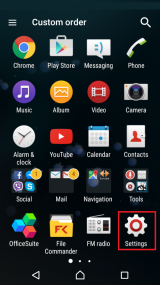
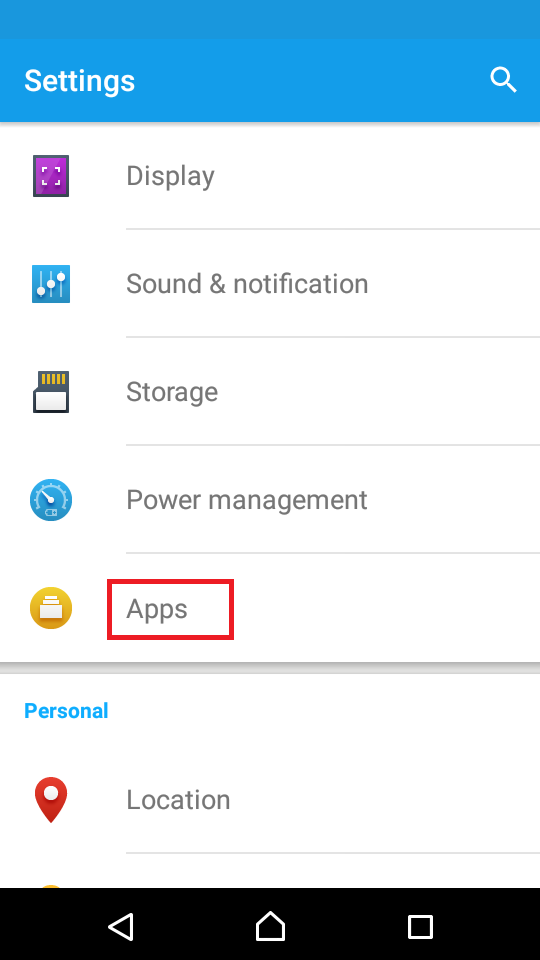
-
Select an application from the list -> Tap on Force stop
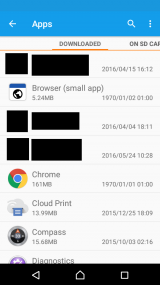
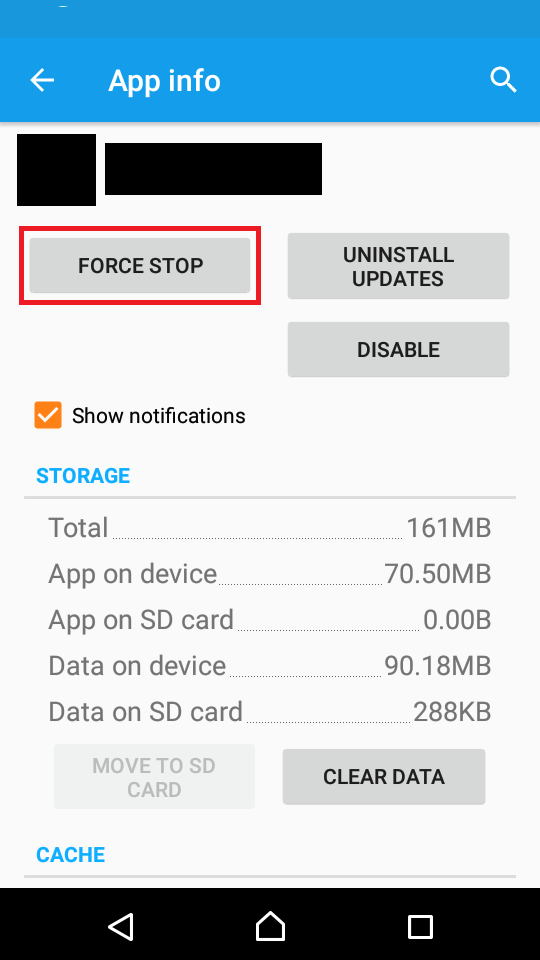
More infosLike Solutionbay?
Also check out our other projects :) See all projects -
-
Restart your computer
0(0)0(0)If you are using your computer to check for emails, try restarting your computer and reopening the client you were using after a couple of minutes.
Check out don't know how to restart my device, if you are not sure how to restart your computer.
More infos -
Choose a different domain name
0(0)0(0)If your domain name contains æ, ø, å or other special characters (known as IDN characters), but your email client does not support IDN characters, you won't be able to receive emails.
In this situation, choose a different domain name, or change the email client.
More infos
-
Change the DNS settings
0(0)0(0)Maybe bad DNS settings are the reason why you can't receive emails. Contact the support staff of the email service you are using or visit their website and ask for the correct DNS settings (and follow their instructions).
If you want to change your DNS settings and use the ones of Google, feel free to check the don't know how to change the DNS settings guide.
More infos
-
Free up your mobile device's internal memory
0(0)0(0)Every device needs free space in order to function properly. If your device's internal memory is full, you won't be able to do many tasks, among which receiving emails.
Check out the running out of disk space / no space left solutions to learn how to free up your mobile device's internal memory.
More infos -
Wait for the server to go online
0(0)0(0)Sometimes this problem is caused by the mail server being offline. You can check whether it's online or not in the Status bar.
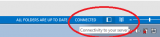
The fix is quite simple, because you just have to wait for the server to go Online. Once it does that, Outlook will check for and receive new email, automatically.
More infosLike Solutionbay?
Also check out our other projects :) See all projects -
Disable and enable the mail sync
0(0)0(0)Most often, emails are stuck due to a sync error and usually you are not aware of it, unless you are specifically suspecting this to be the problem.
To fix this issue:
- Close the email app.
- Go to Settings.
- Under "Personal", tap on Accounts.
- In the top-right corner, tap on More.
- Check or uncheck Auto-sync data.
Note: If your device is running Android 4.4 and below:
- Close the email app.
- Go to Settings.
- Under Wireless & networks tap Data usage.
- In the top-right corner, tap on More.
- Check or uncheck Auto-sync data.
More infos -
Clear Data and Cache
0(0)0(0)If left uncared for, Android apps tend to get "overwhelmed" and start misbehaving. The same thing is probably happening to your Gmail app, which would explain why you are unable to receive emails.
To fix this, try to Clear Data and Cache:
Go to Settings -> Applications -> Gmail -> Clear Data and Clear CacheRepeat this process every 2-3 days.
More infos -
Install another email software
0(0)0(0)If you've exhausted all the options and were unable to find a solution to this problem, try using a different email software (client).
Famous email software (clients) include Microsoft Outlook (which has both computer and mobile version).
More infos -
Make sure that your email account information and settings are correct
0(0)0(0)Maybe incorrect login details or settings prevent you from receiving emails.
To fix this issue, you need check the settings for your email account:
- Go to Settings > Mail, Contacts, Calendars, and tap your email account.
- Tap your email address next to Account to see the account information, such as the incoming and outgoing mail servers.
- Double-check the recommended settings for your email account in the Mail Settings Lookup tool and make sure that they’re the same as the ones you see on the screen.
* If you don’t see the settings for your email account, contact your email provider.
More infos - Go to Settings > Mail, Contacts, Calendars, and tap your email account.
-
Rename the SRS file
0(0)0(0)Sometimes you won't be able to receive emails because the Send and Receive Setting is acting up and the most common reason behind that is a corrupt SRS file.
Outlook saves its users' Send and Receive customizations in a file with the *.SRS extension. You can fix this problem by finding and renaming the SRS file of your profile.
If you're using Windows 7, 8 (.1), 10 or Vista, you'll find the SRS file at this directory: C:\Users\username\AppData\Roaming\Microsoft\Outlook\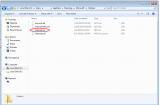
However, if you use Windows XP, you will find it here: C:\Documents and Settings\%username%\Application Data\Microsoft\Outlook\
Either way, you can always type/paste %appdata%\microsoft\outlook in the address bar of your Windows Explorer and it will get you to the right directory.More infosLike Solutionbay?
Also check out our other projects :) See all projects -
Make sure that your email account information and settings are correct
0(0)0(0)Maybe incorrect login details or settings prevent you from receiving emails.
To fix this issue, you need check the settings for your email account:
- Go to Settings > Mail, Contacts, Calendars, and tap your email account.
- Tap your email address next to Account to see the account information, such as the incoming and outgoing mail servers.
- Double-check the recommended settings for your email account in the Mail Settings Lookup tool and make sure that they’re the same as the ones you see on the screen.
* If you don’t see the settings for your email account, contact your email provider.
More infos - Go to Settings > Mail, Contacts, Calendars, and tap your email account.
-
Remove your email account and set it up again
0(0)0(0)If you still have issues with receiving emails, remove your email account from the Mail app and then add it back. Before you re-add the email account, log in to your email from the website to verify that all of your email messages are there.
To remove and add your email account:
- Go to Settings -> Mail, Contacts, Calendars.
- Tap the email account you want to remove.
- Tap Delete Account.
- Add your email account.
More infos - Go to Settings -> Mail, Contacts, Calendars.

Login to Solutionbay
Join Solutionbay
Please click on the confirmation link we just sent you to
If you don’t receive the email in the next 2 minutes please check your junk folder, and add [email protected] to your safe sender list.