
How to fix an unknown error occurred (4005) in iTunes (iPad)
What is iTunes error 4005? What is it caused by? How to fix it?
Device could not be restored − an unknown error occurred (4005), is an error that occurs when you try to update and restore your iPhone, iPad or iPod touch through your computer, using iTunes.
The reasons why this error can occur include:
- Outdated iTunes software installed on your computer;
- Antivirus software settings;
- Viruses;
- Corrupt iTunes files.
Compiled after spending hours on hours in research, below you can find detailed and step-by-step solutions to fixing this iTunes error. Make sure to read them carefully, and follow the instructions to the letter.
-
Restart the computer and the iOS device
0(0)0(0)Operating systems are far more complex than they seem to be. They entail a multitude of processes and tasks running in the background with one purpose - to make your user experience smooth. Maybe one of those processes became unresponsive, resulting in this error.
In most situations, restarting the computer and the iOS device is all you need to do, to fix the an unknown error occurred 4005 iTunes error. Restart them, and try again.
More infos
-
Update iTunes to the latest version
0(0)0(0)Maybe the 4005 error appears because the iTunes version installed in your computer is outdated. Outdated iTunes would not be able to acclimate to the changes introduced on Apple's servers, or iOS. In this case, you need to update it either via iTunes itself or by downloading it from Apple's website.
To check if your iTunes version is up-to-date (and update it, if it's not) via the iTunes app, follow the steps below:
- Open iTunes;
- Click on Help;
- Click on Check for Updates.
Note: If iTunes was installed through a store (e.g. App store, or Microsoft store), you can update it through the store.
More infos
-
Update the computer drivers (Windows OS computers only)
0(0)0(0)Drivers translate operating system language into hardware language and vice versa. For example, without the video (graphic card) driver we won't be able to use our computers, nor have a good-looking display. Drivers, like any other piece of software, and the operating system require updating so that they can keep up with the latest trends, and resolve bugs. It is possible that outdated drivers are responsible for the iTunes error 4005. In this case, to fix this error, you need to update the computer drivers.
One way to update drivers is by downloading them manually from your computer manufacturer's website, and installing them manually. Another way is to use the driver maintenance tool provided by your computer's manufacturer.
For more ways to update drivers, check out the how to update drivers guide.
More infos
Like Solutionbay?
Also check out our other projects :) See all projects -
Plug the USB (lightning) cable in another USB port
0(0)0(0)In order for a proper connection to be established, the gold plates on both ends of the lightning cable need to touch the equivalent gold plates on your computer and iOS device. If this is not the case, a firm connection cannot be established. Maybe the USB port where the lightning USB cable is plugged in is damaged, blocking your computer from recognizing your iOS device.
Plug the lightning cable in another USB port and try pairing the computer and the iOS device.
More infos
-
Use another lightning cable
0(0)0(0)USB cables are made of a few intertwined cords connecting the ports on both sides of the cable. Each of the cords serves its own purpose. If at least one of them is cut, then the USB cable may become unusable. It's possible that the USB lightning cable you use is the reason why you get the 4005 error message, and why your computer won't recognize your iOS device. To test if this is the case, find another original lightning cable and try again.
Note: Don't use, nor buy fake USB lightning cables, as they are made of a lower quality material, and they might not have been wired properly.
More infos
-
Update your device's operating system to the latest version
0(0)0(0)Updating the operating system to the latest version available is a must, so that your device can keep up with the latest trends, install the bug fixes, communicate well with apps running on newer operating system versions. The latest updates hold the key to fixing errors in iTunes, too, including unknown errors like this one. Usually, the updates are scheduled and downloaded and applied automatically, but sometimes this may not take place.
To check if an update is available, follow the below-mentioned steps:
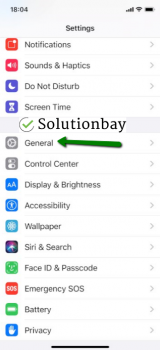
- Go to Settings and tap on General;
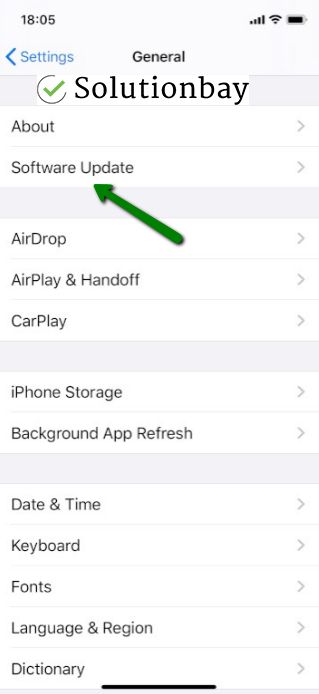
- Tap on Software Update;
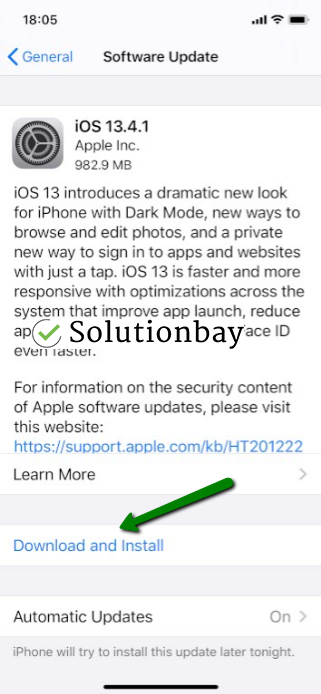
- Tap on Download and Install (will appear if an update is available).
You may also update your device via iTunes, following the steps in the video below:
Note: When you are updating your device's operating system, make sure that it won't run out of battery power. To prevent this, connect your device to the charger. Make sure to download updates through a stable Wi-Fi connection, too.More infos
-
Update your computer's operating system
0(0)0(0)By updating your computer's operating system you will ensure that your computer will get the latest updates, the latest security fixes, and the latest performance improvements. You will also remove all the corrupt files, as well as the redundant files, some of which may hinder iTunes.
Check out the how to update my device's operating system guide, if you are not sure how to update it.
More infos

Login to Solutionbay
Join Solutionbay
Please click on the confirmation link we just sent you to
If you don’t receive the email in the next 2 minutes please check your junk folder, and add [email protected] to your safe sender list.