
How to fix Windows Update Error 9c48
What is error 9c48? What is it caused by? How to fix it?
Windows update encountered an unknown error is an error code that appears when a Windows update fails to install on a Windows 8.1 or Windows 10.
The reasons behind this update error are:
- Poor Internet connection;
- Corrupt Windows update files;
- Antivirus software;
- Corrupt system files;
- Malicious software.
Check out the solutions below, to fix this Windows update error, and follow them carefully, to the detail.
-
Restart your computer
0(0)0(0)In order for us to be able to use our computers, a multitude of processes has to run in the background, doing tasks. If at least one of those processes fails to do a task, errors can occur. This error, for example, may have occurred because of process part of the Windows update module isn't working.
What you need to do first, to fix the Windows update error 9c48 is to restart your computer, i.e. to turn it off and then turn it back on. What restarting does is putting all the processes to sleep and then waking them up.
More infos
-
Run the Windows update troubleshooter
0(0)0(0)The Windows update troubleshooter is a tool developed by Windows to fix update-related error codes like Windows update error code 9c48. It will tell you what the issue is and offer you to fix it with a single click.
To run the Windows Update Troubleshooter tool, feel free to follow the steps below:
- Go to the start menu and type find and fix windows update problems; You can also download the troubleshooter from Microsoft's website;
- On the troubleshooter screen, click on Next and follow the instructions presented on-screen.

More infos
-
Uninstall third−party programs
0(0)0(0)Maybe one of the programs you installed on your computer is the reason why Windows update 9c48 error occurs. In this case, uninstalling that program should fix the error.
Firstly, you would need to identify if a and which program is the cause of this error. To identify the program, start by uninstalling the programs you installed or updated last, before this error message appeared on your screen. Once you have identified the program, remove it. Then you can reinstall the other programs if you like, because they most likely weren't the reason behind this error code.
Follow the steps below, to uninstall programs:
- Open the start menu and type Control Panel;
- Click on the Control Panel icon;
- Click on Programs and Features;
- Select (Highlight) a program in the list, and then click on Uninstall;
- Wait for the uninstalling process to complete;
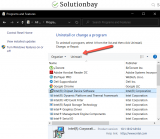
Note: Avoid uninstalling programs labeled Intel, nVidia, Realtek, or AMD, as they are computer drivers. For more ways of uninstalling programs, feel free to consult the don't know how to uninstall a program / an application guide.
More infos
Like Solutionbay?
Also check out our other projects :) See all projects -
Disable the antivirus software temporarily
0(0)0(0)Maybe the antivirus software is the reason for this error to occur. Although with the best intentions, the antivirus shields may consider the update file a threat and block it, or one of the processes needed for the Windows update to be installed. If this is the case, disable the antivirus software's real-time protection (shield), temporarily, and then try to install the update.
Note: Make sure to enable the antivirus protection afterwards, to ensure that your computer remains protected, and check its settings to have this issue resolved before a future Windows update is released.
More infos
-
Ensure that Windows Update services are set to start automatically
0(0)0(0)In order for Windows update files to be installed, the Windows update components, i.e. services, need to be active, and working properly. Updating Windows won't take place, or errors can occur, if all the services needed for downloading and installing the update aren't active. What you need to do is to set the services to start automatically when you turn on the computer, and restart the computer, so that when your computer powers back on, the update can be installed.
You can do that from the command prompt (CMD), by following the steps mentioned below:
- Open the start menu and type cmd;
- Right-click on the Command Prompt icon and select Run as administrator;
- Type the following commands, one at a time, pressing the Enter key on your keyboard;
SC config trustedinstaller start=auto
SC config bits start=auto
SC config cryptsvc start=auto - Restart the computer.
More infos
-
Enable the Windows Module Installer service
0(0)0(0)This error can occur if the Windows Module Installer service is disabled. In this case, all you need to do is to enable this service.
To access and modify Windows services, feel free to follow the steps below:
- Go to the start menu, type services.msc and click on the Services icon once it appears;
- Right-click on the Windows Module Installer service and click on Properties;
- Click on Enable;
- Restart your computer;
Note: If the Windows Module Installer service was already enabled, you can disable it first, and enable it again, following the steps mentioned above.
More infos
-
Reset the Windows Update components
0(0)0(0)Resetting the Windows Update components is known to resolve a plethora of Windows update issues, including this error, provided that the components are the reason behind it.
As resetting the Windows Update components is a risky task, make sure to follow the steps below, to the letter:
- Go to the start menu and type command prompt. Once it appears, right-click on it and select Run as Administrator (and type the Administrator's password, if asked).
- Type the following commands in the same order as displayed here and press enter after you type each command:
- net stop bits
- net stop wuauserv
- net stop appidsvc
- net stop cryptsvc
- Type the following command and then press Enter, in order to delete the qmgr*.dat files:
Del "%ALLUSERSPROFILE%\Application Data\Microsoft\Network\Downloader\qmgr*.dat"
- Type the following command and press Enter:
cd /d %windir%\system32 - Type the following commands in the same order as below in order to reregister the Windows Update files and press Enter after you type each command:
- regsvr32.exe atl.dll
- regsvr32.exe urlmon.dll
- regsvr32.exe mshtml.dll
- regsvr32.exe shdocvw.dll
- regsvr32.exe browseui.dll
- regsvr32.exe jscript.dll
- regsvr32.exe vbscript.dll
- regsvr32.exe scrrun.dll
- regsvr32.exe msxml.dll
- regsvr32.exe msxml3.dll
- regsvr32.exe msxml6.dll
- regsvr32.exe actxprxy.dll
- regsvr32.exe softpub.dll
- regsvr32.exe wintrust.dll
- regsvr32.exe dssenh.dll
- regsvr32.exe rsaenh.dll
- regsvr32.exe gpkcsp.dll
- regsvr32.exe sccbase.dll
- regsvr32.exe slbcsp.dll
- regsvr32.exe cryptdlg.dll
- regsvr32.exe oleaut32.dll
- regsvr32.exe ole32.dll
- regsvr32.exe shell32.dll
- regsvr32.exe initpki.dll
- regsvr32.exe wuapi.dll
- regsvr32.exe wuaueng.dll
- regsvr32.exe wuaueng1.dll
- regsvr32.exe wucltui.dll
- regsvr32.exe wups.dll
- regsvr32.exe wups2.dll
- regsvr32.exe wuweb.dll
- regsvr32.exe qmgr.dll
- regsvr32.exe qmgrprxy.dll
- regsvr32.exe wucltux.dll
- regsvr32.exe muweb.dll
- regsvr32.exe wuwebv.dll
- Reset the Winsock by entering the following command and pressing Enter:
netsh winsock reset - Reset the proxy, by typing the following command:
netsh winhttp reset proxy - Type the following commands to start the Windows Update components, and press Enter after you type each of them:
- net start bits
- net start wuauserv
- net start appidsvc
- net start cryptsvc
- Update the Windows Update agent to the latest version (read this thread by Microsoft to learn how);
- Restart the computer.
Note: If the method above didn't work, repeat the same procedure, but do the following before proceeding to step 4:
- Rename the software distribution folders backup copies, by typing the following commands:
Ren %systemroot%\SoftwareDistribution SoftwareDistribution.bak
Ren %systemroot%\system32\catroot2 catroot2.bak - Reset the Windows Update and BITS services, by typing the following commands:
sc.exe sdset bits D:(A;;CCLCSWRPWPDTLOCRRC;;;SY)(A;;CCDCLCSWRPWPDTLOCRSDRCWDWO;;;BA)(A;;CCLCSWLOCRRC;;;AU)(A;;CCLCSWRPWPDTLOCRRC;;;PU)
sc.exe sdset wuauserv D:(A;;CCLCSWRPWPDTLOCRRC;;;SY)(A;;CCDCLCSWRPWPDTLOCRSDRCWDWO;;;BA)(A;;CCLCSWLOCRRC;;;AU)(A;;CCLCSWRPWPDTLOCRRC;;;PU)
More infos
- Go to the start menu and type command prompt. Once it appears, right-click on it and select Run as Administrator (and type the Administrator's password, if asked).
-
Run the System File Checker (SFC) tool
0(0)0(0)The System File Checker is a powerful utility developed by Microsoft that can help you fix various issues related with potentially corrupt files which might have caused this error code to occur when updating Windows to the latest version. This utility will scan all the system files, and fix them.
To run the System File Checker, feel free to follow the steps below:
- Click on the start menu and type command prompt;
- Once it appears in the search results, right click on it and select Run as Administrator;
- In the command prompt type the following command:
sfc /scannow
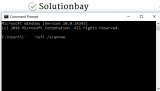
- Wait for the process to complete.
More infos
Like Solutionbay?
Also check out our other projects :) See all projects -
Use the DISM (Deployment Image & Serving Management) command
0(0)0(0)Errors mainly occur due to corrupt files. If at least one file becomes corrupt, an error will appear. In this case, the best way to fix the 9c48 error code is to replace all the corrupt files manually. For this purpose, the DISM command is the best alternative, as replacing the files manually can be dangerous. DISM stands for Deployment Image & Serving Management, and it can be used to download and restore the system files.
To use the DISM command, follow the steps below:
- Go to the start menu, type command prompt, and once it appears in the search results, right-click on it and select Run as Administrator;
- Type the following command and press Enter:
DISM /Online /Cleanup-Image /RestoreHealth - Once the process is completed and if files were replaced, restart the computer;
- Open the command prompt as described in the first step, type the following command and press Enter:
sfc /scannow
More infos
- Go to the start menu, type command prompt, and once it appears in the search results, right-click on it and select Run as Administrator;
-
Restore your computer using the System Restore feature
0(0)0(0)The System Restore feature can be compared to a time machine. It reverts Windows back to a past state, when it was operating properly. This process is carried out without affecting your documents, nor other personal data. If none of the other solutions worked, it is possible that this feature can help with fixing the issue with the error code 9c48.
To restore your computer:- Go to the start menu and type System restore;
- Click on the Next button;
- Select one of the system restore points available;
*You can also check the Show more restore points box to see all the restore points stored on the system.
**Click the Scan for affected programs first, which will show you what programs have been installed after the restore point was created. - Wait for the process to complete
Note: Do not interrupt the System Restore process to avoid unwanted system damages and data loss. If you use a laptop, let it charge all the time.
More infos
-
Reset your computer's settings with the PC refresh feature
0(0)0(0)The PC Refresh feature is another way to fix issues with installing Windows updates, like this error on Windows 10. This feature will reset your computer's settings to its factory ones without deleting personal data (photos, videos, music, etc.), however, it would be best for you to back up your data to another place, e.g. on another computer or in the cloud (e.g. Google Drive, Dropbox, etc.).
To do a PC refresh, follow the steps below:
- Open the Start menu and click on Settings;
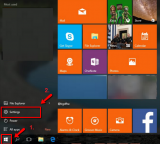
- Select Update and Recovery/Security (depends on the Windows version);
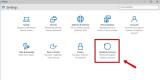
- Select Recovery (if you clicked on Update & security) and click on Get started under Reset this PC;
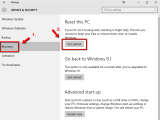
- Select Keep my files;
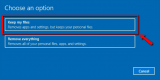
- Click Next once you see the applications that might be modified (deleted or those that need to be reinstalled);
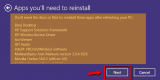
- Click on Reset;
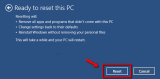
Note: Don't interrupt the process, to avoid data loss. If you use a laptop, plug it in its adapter.
More infos
- Open the Start menu and click on Settings;
-
Do a PC reset
0(0)0(0)If you were unable to fix the issue nor update Windows 10 to the latest version, consider performing a PC Reset. This option developed by Microsoft will restore Windows to its factory settings, and delete all the personal files (photos, videos, music and other documents), as well as all the software you installed.
To reset Windows, follow the below-mentioned steps:
- Go to the Start menu and click on Settings.
- Select Update and Recovery/Security (depends on the Windows version).
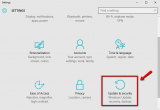
- Select Recovery (if you clicked on Update & security) and click on Get started under Reset this PC.
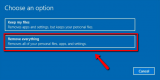
- Select Remove everything.
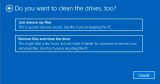
- Select one of the offered options.
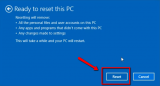
- Click on Reset to start the process.
More infos
- Go to the Start menu and click on Settings.
-
Perform a PC refresh
0(0)0(0)If you get the 9c48 error on Windows 8 (or Windows 8.1), consider performing a PC refresh. This feature will reset your computer's settings to its factory ones, and restore the system files, erasing any changes made in them, without deleting personal files (photos, videos, music, etc.), however, to be on the safe side, you can consider making a back-up of your data, somewhere else, e.g. on another computer or in the cloud (e.g. Google Drive, Dropbox, etc.).
To refresh Windows, follow the steps below:
- Move the mouse pointer to the top/bottom-right corner -> Click Settings -> Select Change PC settings.
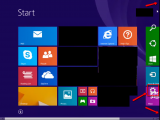
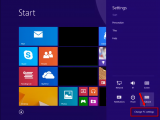
- Select Update and recovery -> click on Recovery
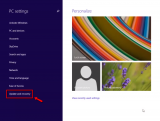
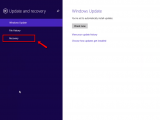
- Select Get Started under Refresh your PC without affecting your files
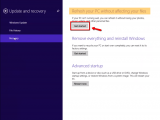
- Insert the DVD that contains the Windows 8(.1) installation files (if needed)
- Click on Next and then on Refresh;
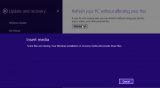
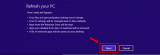

More infos
Like Solutionbay?
Also check out our other projects :) See all projects - Move the mouse pointer to the top/bottom-right corner -> Click Settings -> Select Change PC settings.
-
Reset Windows with the PC reset option
0(0)0(0)If you were unable to solve the error 9c48, do a PC Reset. The PC reset feature will restore Windows to its factory settings, and delete all the personal files (photos, videos, music and other documents), as well as all the programs you installed.
If you don't want personal files deleted, you can back them up to an external hard drive, or to a cloud storage platform (Google Drive, OneDrive, etc.).
To reset Windows, follow the steps below:
- Move the mouse pointer to the top/bottom-right corner, click on Settings and select Change PC settings;
- Select Update and recovery and click on Recovery
- Select Get Started, below Remove everything and reinstall Windows
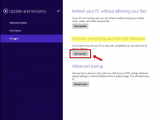
- Click on Next;

-
Click on Fully clean the drive;

-
Click on Reset;

More infos
- Move the mouse pointer to the top/bottom-right corner, click on Settings and select Change PC settings;

Login to Solutionbay
Join Solutionbay
Please click on the confirmation link we just sent you to
If you don’t receive the email in the next 2 minutes please check your junk folder, and add [email protected] to your safe sender list.