
How to fix Printer not activated error code −30 in Windows (Windows 7)
What are the reasons for the Printer not activated error code 30? How to fix it?
This printing error occurs when your printer is unable to print the file you selected for printing. The reasons for this error include:
- Outdated printer drivers;
- Damaged drivers;
- Bad connection between the printer and the computer;
- Malicious software;
- Outdated operating system.
The solutions listed below reveal how you can fix this error, safely. All you need to do is to follow the instructions.
-
Restart the printer
0(1)0(0)Maybe the printer got stuck and believes that it has to do something else, which you didn't ask to be done, therefore being unavailable for printing. In this case, what you need to do is to restart the printer. To restart it, turn the printer off, unplug its power cord and power it on after 5 minutes.
More infos
-
Ensure that your printer is turned on
0(0)0(0)Primarily, error code -30 indicates that your printer is not turned on. Perhaps your printer was turned on, but it turned off in the meantime, and you didn't notice. Check your printer and if it was indeed turned off, turn it back on.
More infos
-
Ensure that the printer's USB cable is plugged in on both ends
0(0)0(0)USB cables are made of thin intertwined wires, each of which serves a specific purpose. In order for a proper connection between two devices to be established, the metal plates on both ends of the USB cable need to be in contact with the metal plates of the computer's USB port and the printer's port.
Maybe the reason for the printer not activated error code -30 is the USB cable that links the computer and the printer. It may be loosely connected, or cut. Check the USB cable, and ensure that it's firmly connected on both ends, in your computer and in the printer, and then try printing again.
More infos
Like Solutionbay?
Also check out our other projects :) See all projects -
Set the printer as the default printer of your computer
0(0)0(0)Maybe the reason why this error code appears when you try to print pdfs or other files is because your printer is not set as the default one. By setting it as the default printer, your computer will always check (pay the most attention to) this printer first.
To set a printer as the default printer, follow the steps below:
- Go to the start menu and then click on Devices and Printers;
- Right-click the printer you wish to set as the default one and select Set as default printer;
- Restart your computer and printer, and try printing.
More infos
-
Update the printer's driver
0(0)0(0)Outdated drivers in general are known to cause issues, as they don't have the necessary tools to handle new "standards." Maybe the printer's driver is outdated, and it doesn't interact well with the latest version of the operating system Windows. If this is the case, what you need to check is if an update to the printer's driver is available and install it.
You can update drivers in one of the ways below:
Note: Feel free to check the how to download and install drivers guide if you are not sure how to download and install drivers.
More infos
-
Update Windows to the latest version
0(0)0(0)Updating Windows to the latest version is needed to ensure that Windows remains stable and secure and that it continues to interact properly with other programs and devices connected to your computer. Maybe error 30 occurs due to the operating system version being outdated. Check if an update is available, and install it, if one is.
Usually, updates are installed automatically, however, you can, and is advised to check manually. To check for operating system updates manually, follow the steps below:
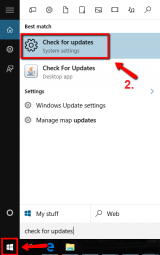
- Click/Tap the start menu icon and type check for updates;
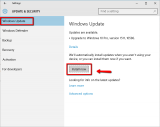
- If you receive an information that an update is available, click/tap Install now.
Note: If you use an older Windows version (Windows 7, or Windows 8.1), feel free to check out the how to update the operating system solutions.
More infos
- Click/Tap the start menu icon and type check for updates;
-
Wait for the printer to power on
0(0)0(0)It is possible that the printer is not fully powered on, for some reason. Wait for a few minutes to give the printer time to power on, and then try printing with it.
More infos
-
Scan your computer for viruses
0(0)0(0)Maybe a virus infected your computer and corrupted, or deleted files related to the printer drivers, which are needed for your computer to instruct the printer what to do, i.e. to establish the communication between the printer and the computer. In this case, you need to scan your computer for viruses with an antivirus software, and remove the virus(es), if one is found. Then, the issue should be resolved.
Aside from having an antivirus software, make sure to adopt the following best practices to protect your computer from viruses:
- Check for antivirus software updates frequently;
- Download files from trusted sources only;
- Avoid opening junk emails with dubious content;
- Stay away from suspicious websites;
Learn more on how to protect your computer and keep it clean from viruses, through the Computer virus protection guide.
More infos
Like Solutionbay?
Also check out our other projects :) See all projects -
Ensure that the computer and the printer are connected to the same network
0(0)0(0)Maybe error 30 appears because your computer and printer aren't connected to the same Wi-Fi network, which is a precondition for the printer and the computer to be able to communicate. Make sure that the printer and the computer are connected to the same network and try printing again.
More infos
-
Turn on the printer's Wi−Fi
0(0)0(0)Maybe the printer's Wi-Fi module is turned off, which prevents the printer from connecting to the Wi-Fi network, and you from using the printer.
Verify that the printer's Wi-Fi is turned on (if you are not sure how to verify, check the printer's manual) and check if error -30 would appear again. Usually there is a Wi-Fi icon on the printers which, when its light is green, signals that the printer is connected to the Wi-Fi network.
More infos
-
Restart the router
0(0)0(0)Restarting the router is another way to fix the printer not activated error code 30 error. Maybe it's the router that won't let a connection between your printer and computer to be established. Unplug the router from power, and plug it back in after a couple of minutes.
More infos
-
Revisit the antivirus and firewall settings
0(0)0(0)Maybe the current firewall and antivirus settings won't let you use the printer because they might believe that it is not safe. To verify this assumption, try disabling them temporarily and check if the issue persists. If the printer not activated error code 30 didn't appear, and you were able to print, check how the firewall and the antivirus settings are configured, and modify the firewall and antivirus settings.
To deactivate the Windows Firewall, you can follow the instructions below:
To activate the Windows Firewall, feel free to follow the steps below:
More infos
-
Contact the printer's support team
0(0)0(0)It is possible that your printer is misconfigured, or simply is sending you a message you can't read well. The customer support team of the printer's manufacturer is more familiar with this issue, and can help you. Should you have any doubts, or you don't feel comfortable with configuring the printer on your own, feel free to contact the customer support staff, tell them more about the issue, and let them guide you how to address it.
You may find contact details of the customer support team online, on the printer manufacturer's website.
More infos
Like Solutionbay?
Also check out our other projects :) See all projects -
Reinstall the USB driver
0(0)0(0)When the printer gets connected to a computer via a USB cable, the USB drivers need to be in proper working order, because errors occur if they aren't. Maybe the computer's USB driver got corrupt, accidentally, or due to a virus that was roaming free in the past. In this case, all you need to do is to reinstall the USB driver, by uninstalling the driver and downloading and installing the latest version. To do so, feel free to follow the steps below:
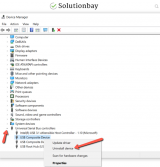
- Go to the start menu, type Device Manager and click on it, once it appears;
- Click on the Universal Serial Bus Controllers dropdown button;
- Right-click a USB Composite device driver from the drop-down list and select Uninstall Device;
- Restart your computer;
- The reinstallation process would take place on its own.
Note: If the method above didn't work, you need to repeat the steps above, and this time to install an appropriate printer driver. Discover how to find and install the appropriate drivers your computer needs, via the don't know how to download and install drivers.
More infos

Login to Solutionbay
Join Solutionbay
Please click on the confirmation link we just sent you to
If you don’t receive the email in the next 2 minutes please check your junk folder, and add [email protected] to your safe sender list.